Starting with version 6, the ThreatSTOP Admin Portal supports multiple users and Role-Based Access Control within an organization account.
This document provides a summary of the changes to the portal for existing customers. Full reference documentation is available here.
Overview
The new RBAC design brings more granular security controls (the ability to give specific access permissions to users) and a simplified approach to adding users to an account.
Note that no action is needed on your end and the release will not change your account’s configuration. A couple of GUI elements will change from the current view - most noticeably, the account switch feature.
Concepts
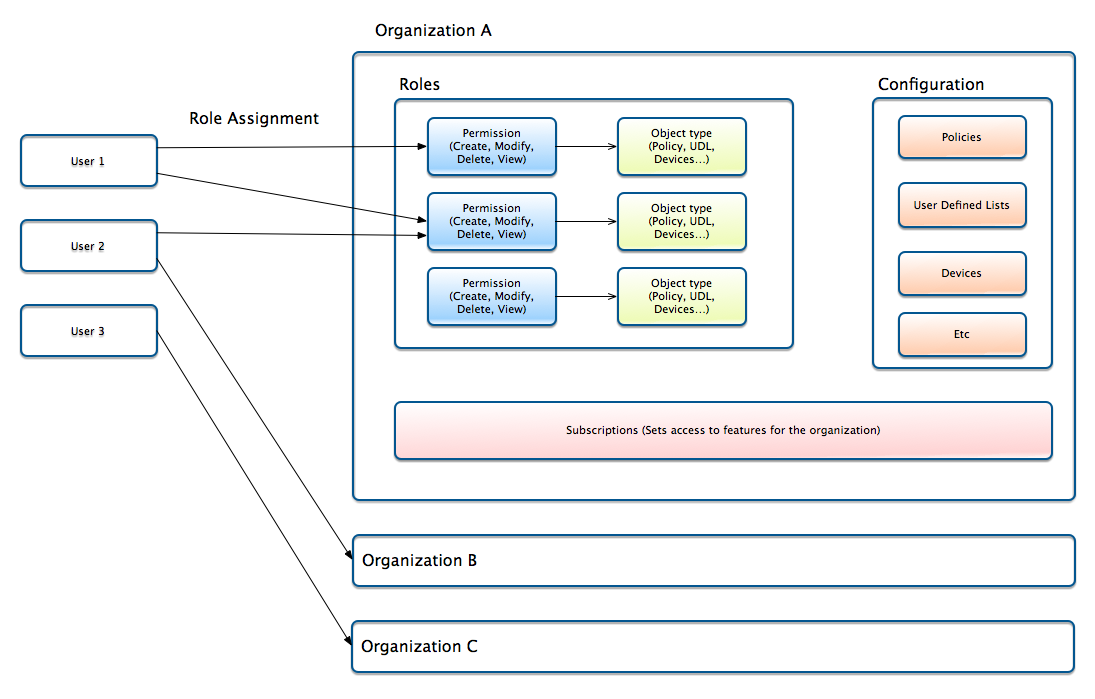
In the new design, organization and users are decoupled, instead of associating one user to one organization.
- Organizations are the entities that contain the ThreatSTOP features (policies, devices, user-defined lists…).
- Users are individuals identified by their email address.
- Users are assigned roles into one or more organizations
- The roles define what operations users can perform.
This design replaces and expands the Third-party access feature that allowed users to log into another user’s account.
User interface changes
Login
- For users that have third-party access into other accounts, you will be asked to select which organization you want to login into after entering your credentials. A default can be set in the Account switch (see below). At launch, the default will be set to the email address’s original organization.
- For users that don’t have any additional access, the login process will be unchanged.

Account switch
- If you use the account switch to access other accounts, the feature has moved from the Account settings page to the Account switch widget, which is accessed by clicking on the Organization ID in the ThreatSTOP menu.
- There are two changes to the switching process:
- You will need to select the organization (identified by the Org ID), not the user (email address) that you want to access. For a transitional period, the email address will be shown along the org ID but once customers have acclimated to organization IDs, email addresses will be removed from the list, because these email addresses can change overtime.
- You can select any organization that you have access to and set it as the default used for logging in.


Third-party access
The Third-Party Access feature is replaced by:
- The account switch to access another organization
- The user/role assignment page to manage the list of users with access to your organization account
The legacy Third-Party Access feature offered two levels of access: Admin and Reporter. At launch, these two access levels are replaced with two roles (Full Admin, Reporter) that grant the same permissions. Users that have third-party access to your account at release time will be granted the equivalent role. If you have third-party access to another account, you will be granted access with the equivalent role.
Additionally, it is not necessary to create an organizations to add users anymore. It is now possible to add users and grant them access to an organization account without setting up an organization for that user.
Sharing of user-defined lists
User-defined lists can be shared (using the Shared setting of each user-defined list). Your shared lists will be shared with accounts that you have currently given third-party access to; you can trim down the list of organization once the feature becomes enabled.
In the new design, you can select explicitely which organization(s) you want to share user-defined lists with. The list of organizations is managed with the new User-Defined Lists > Shared Access menu entry.
At launch, the organization that shared lists are shared with will be unchanged.

Custom Roles
The release will also enable the management of custom roles, in addition to the five predefined roles. This feature is enabled by a new SKU. Please contact us if you would like access to the custom roles feature.

Audit Log
The new RBAC design tracks which users have made changes to configuration settings. An audit log shows the time, IP and user responsible for the changes. The Audit Log is reached via the Analysis > Audit Log menu entry.